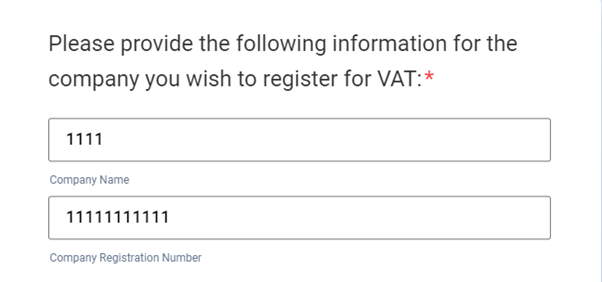
Step 1: You can find your company number by searching your name on the register here.
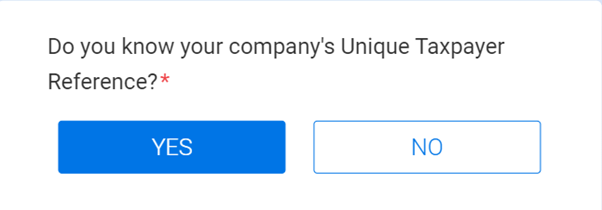
Step 2: HMRC will send you a letter containing your Unique Taxpayer Reference (UTR) to your registered office address within 2 to 3 weeks of your limited company being formed. This letter is a CT41(G) Form, which will contain your company’s 10-digit UTR.
If you have our Registered Office service, you can view the mail we have received for your company by logging in to your Online Client Portal and navigating to the 'My Mail' section from your Customer Dashboard.
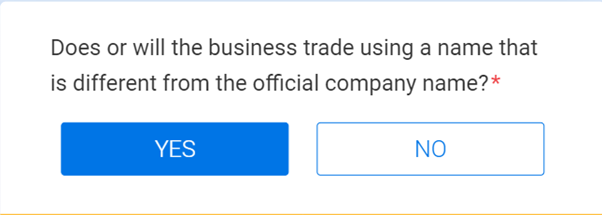
Step 3: If applicable, enter an alternative trading name, i.e. JONNY F LTD trading as JONNY.
Step 4: You only have to provide the contact information for one director, and it can be any director in the company.
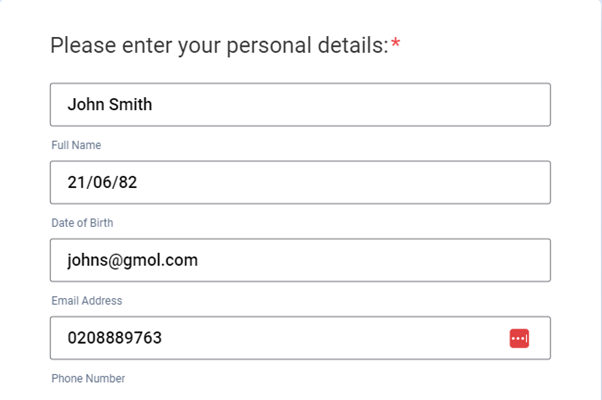
Step 5: If your name has changed e.g. by marriage or deed poll, then you must provide your previous name. This is usually only if a name change has occurred since 2018.

Step 6: It is mandatory to add your National Insurance number if you have one.
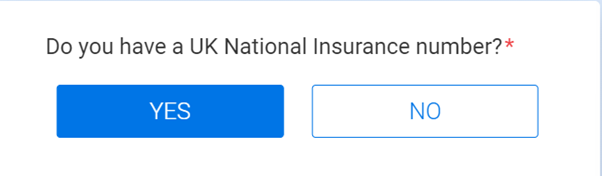
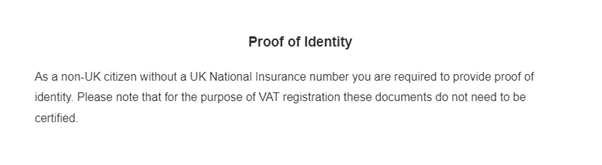
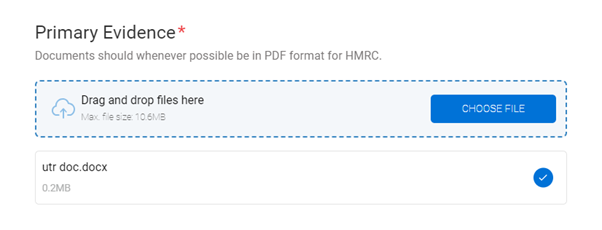
Step 7 (non-UK residents only): If you do not have a UK National Insurance number, you will need to provide supporting evidence on your application. For primary evidence, most people will provide a passport or national ID card.
For secondary evidence, most people will provide a birth certificate and something from their employer that has their name and address on, e.g. a payslip or a contract. If you can’t provide a document from the list, then a mobile telephone bill dated within the last 3 months may work (although this is not recommended).
The documents need to be in a Latin-based language, e.g. English, Spanish, German, etc. If the document is in a non-Latin-based language, e.g. Arabic or Cyrillic, then the document must be accompanied by an official sworn translation.
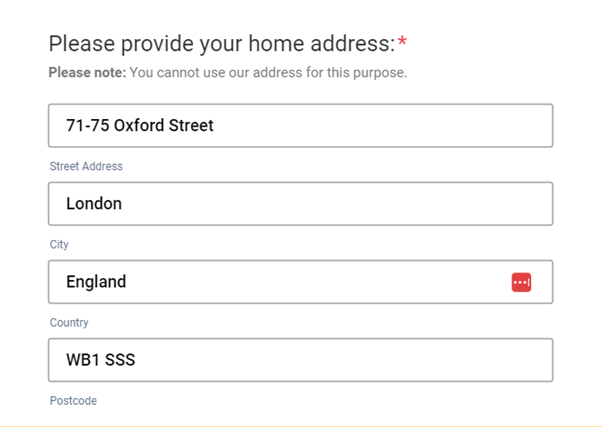
Step 8: Please provide your home address. You cannot use our address.
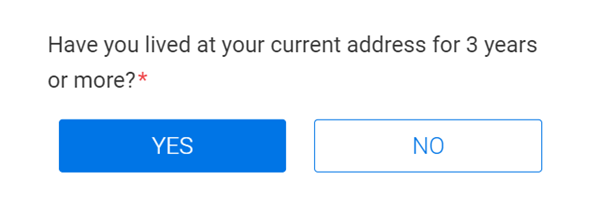
Step 9: If you have lived at another address in the last three years, please provide the address.
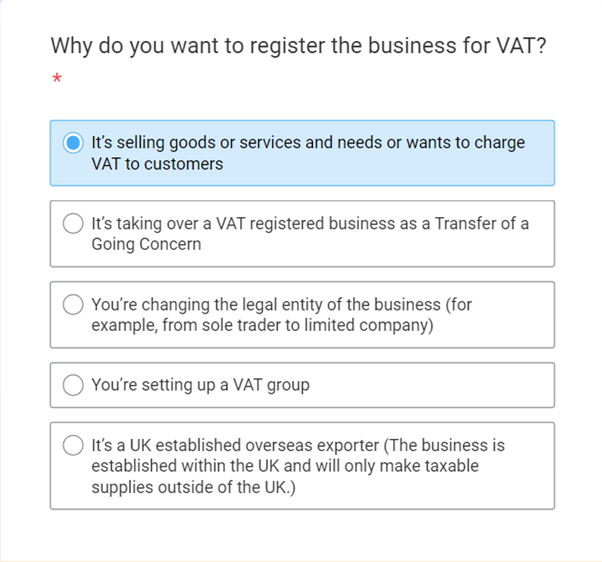
Step 10: Regarding the 'main reason for applying for VAT' – the first option is usually for companies trading in the UK (most people select this option).
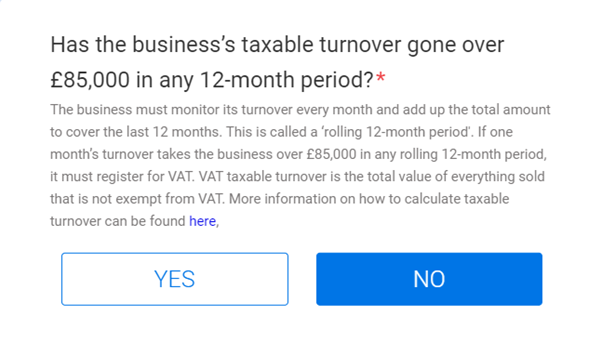
Step 11: For new businesses, the answer will most likely be ‘no.’ If the answer is ‘yes’, you must enter the date the business went over the threshold.
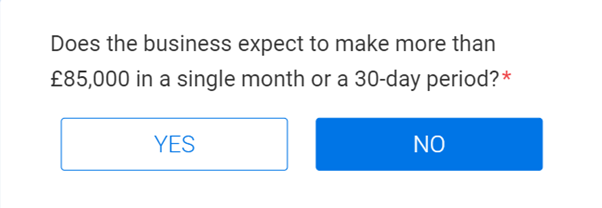
Step 12: In most cases, the answer will be no. If the answer is ‘yes’, you must enter the date the business realised it would go over the threshold.
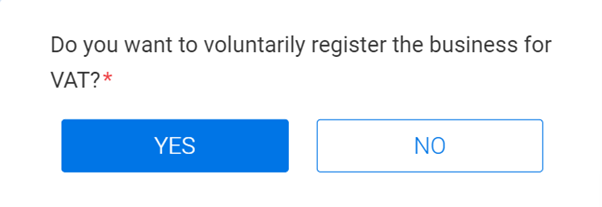
Step 13: The answer must be ‘yes’.
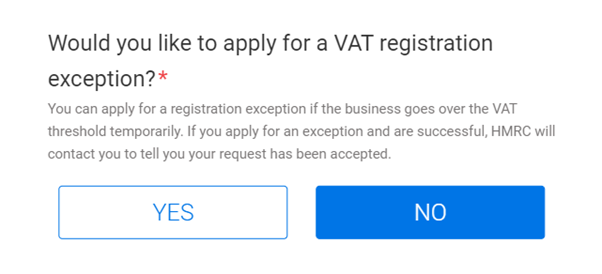
Step 14: In most instances, the answer will be ‘no.’ You can apply for a registration exception if the business goes over the VAT threshold temporarily. If you apply for an exception and are successful, HMRC will contact you to tell you your request has been accepted.
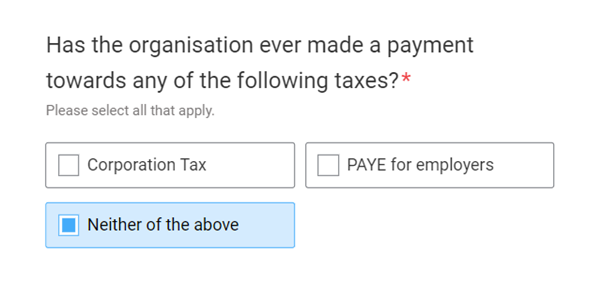
Step 15: If you are a new business, you will most likely choose “neither of the above.”
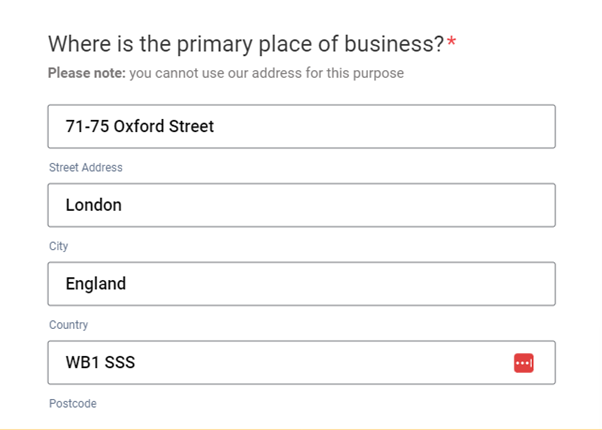
Step 16: You cannot enter our address as your Business Contact Address. You must enter the address you are trading from at, e.g. your home address.
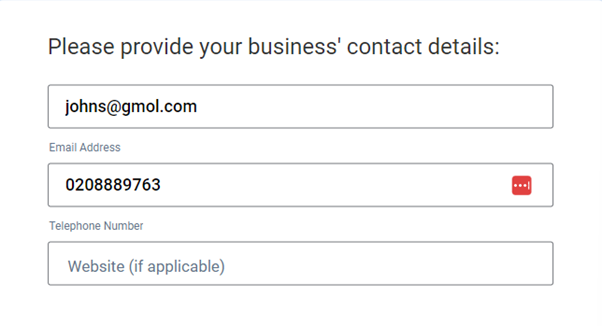
Step 17: Enter your business’ contact details. If you do not have contact details yet, enter your personal details.
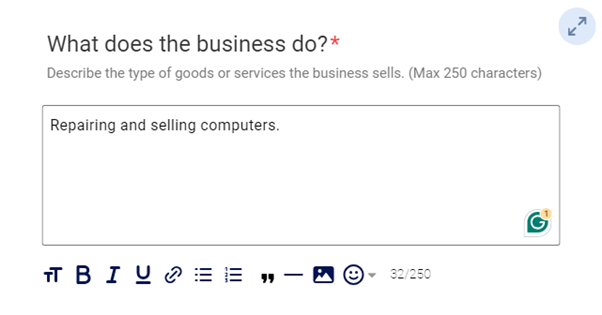
Step 18: The nature of business just needs to be a brief description.
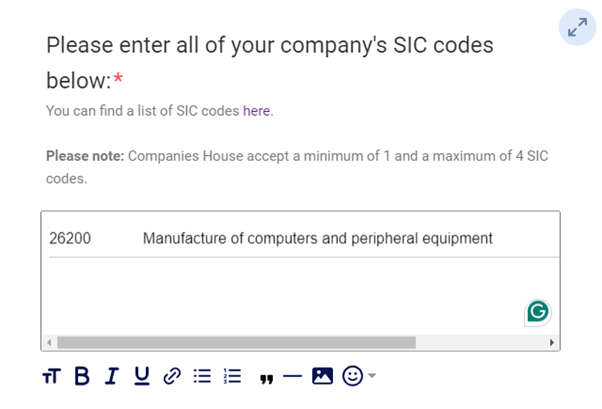
Step 19: You can find your company’s SIC codes by searching your name on the register here.
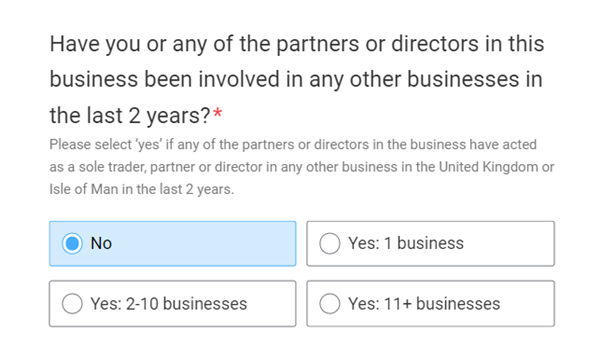
Step 20: Please select ‘yes’ if any of the partners or directors in the business have acted as a sole trader, partner or director in any other business in the United Kingdom or Isle of Man in the last 2 years. You will need to enter the relevant company name, number and status of the company.
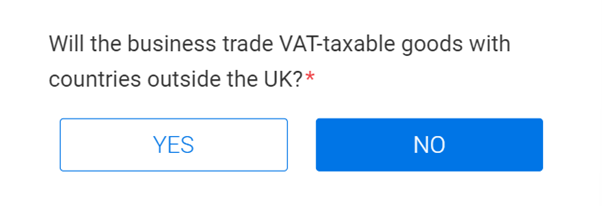
Step 21: Select ‘yes’ or ‘no’ as applicable.
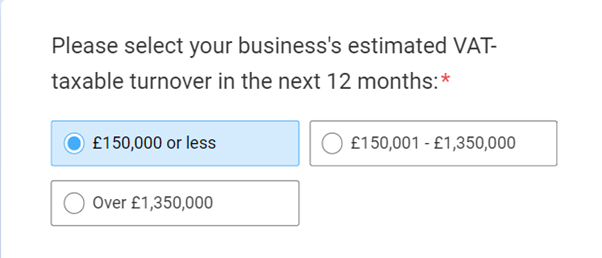
Step 22: Please select your business' estimated VAT-taxable turnover in the next 12 months.
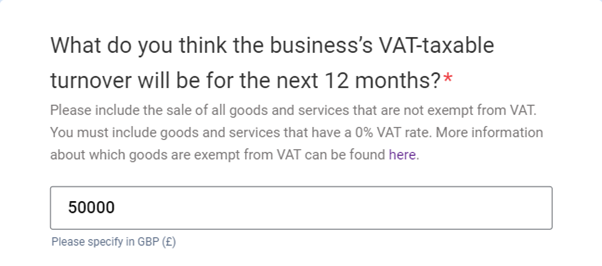
Step 23: This is just an estimate of your turnover for the next 12 months.
Step 24: Please enter a value for all of the taxable goods which are zero-rated. More information on zero-rated taxable goods can be found here.
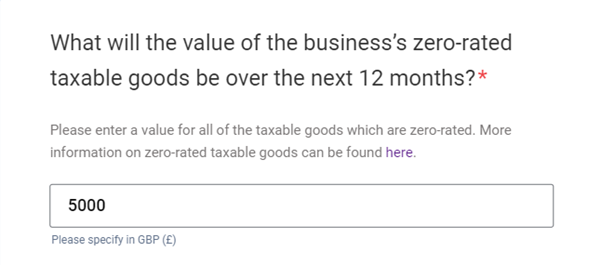
Step 25: If you select 'yes' then you'll need to enter a figure for the value of these goods.
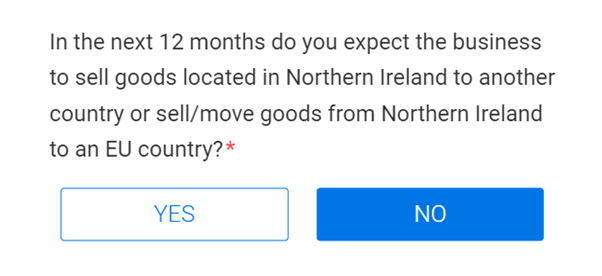
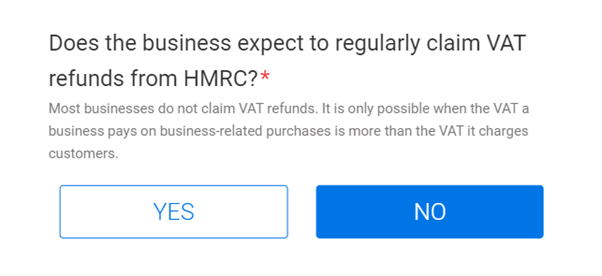
Step 26: Most likely, this will be ‘no’ as most businesses do not claim VAT refunds. It is only possible when the VAT a business pays on business-related purchases is more than the VAT it charges customers.
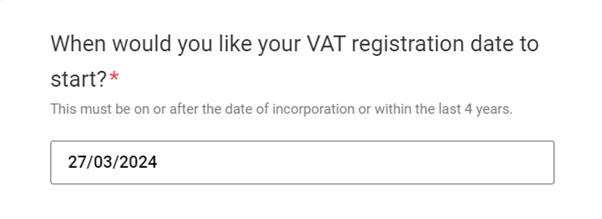
Step 27: This must be on or after the date of incorporation or within the last 4 years. Your effective registration date is the date you realised you were expecting to exceed the threshold, not the date your turnover went over the threshold.
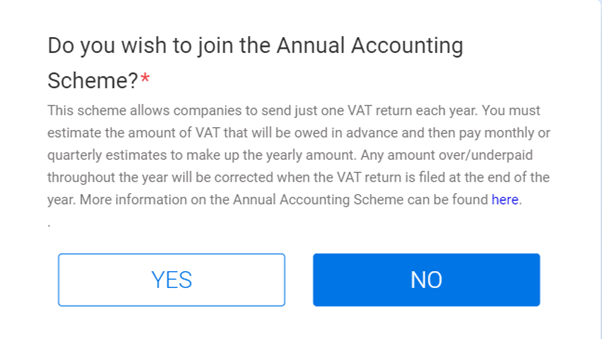
Step 28: If you choose the Annual Accounting Scheme, then you will need to select one of the options for payment.
For the month to pay, select the month you’re going to start trading (only if you know). If you don’t know the start date, then you can select no preference.
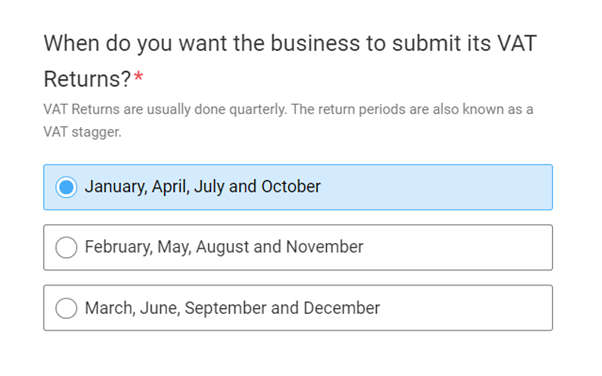
Step 29: It is up to you when you wish to submit your business’ VAT returns. Some factors to consider are your incorporation date, and when you plan to start charging VAT to your customers.
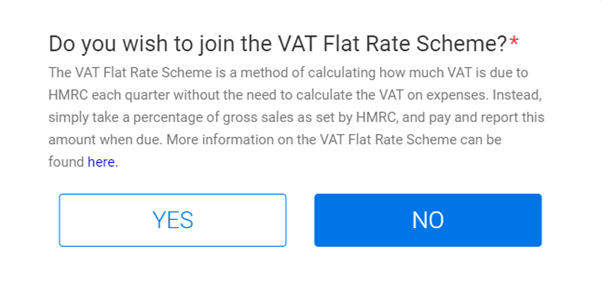
Step 30: The VAT Flat Rate Scheme is a method of calculating how much VAT is due to HMRC each quarter without the need to calculate the VAT on expenses. Instead, simply take a percentage of gross sales as set by HMRC, and pay and report this amount when due. More information on the VAT Flat Rate Scheme can be found here.
If you select the Flat Rate Scheme, then the percentage you pay is determined by your SIC code – you can look up industry SIC codes and flat rate percentages online.
If you select ‘yes’ you must answer the questions about estimated sales.